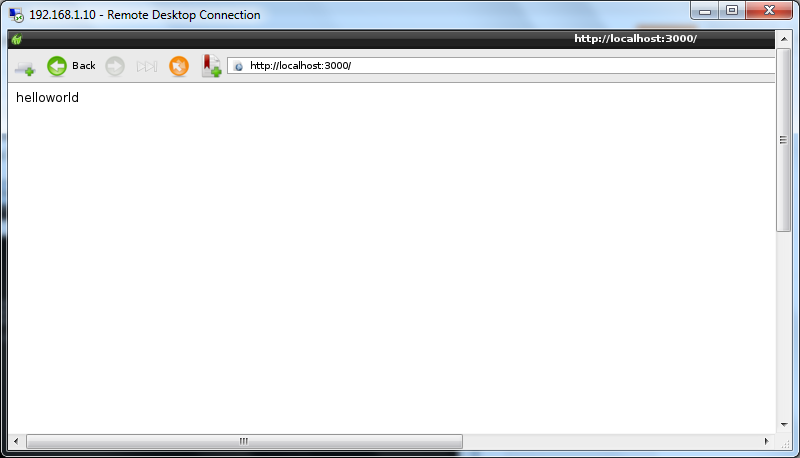
Express is a framework for node.js. It will easy build application using Express. Started to try some applications with Express in Raspberry Pi.
Express is a minimal and flexible Node.js web application framework that provides a robust set of features.http://expressjs.com/
installation - http://expressjs.com/starter/installing.html
examples - http://expressjs.com/guide/error-handling.html
Sunday, November 2, 2014
Monday, October 6, 2014
Sunday, September 28, 2014
Monday, August 11, 2014
Not sure how to record the keys of my TV remote with IRRECORD
As per the google search results I tried recording my TV remote keys to create lirc.conf file. Its creating the conf file, but the 'irw' not detecting the keys .
Not sure anything wrong I am doing while recording the keys in the TV remote.
pi@raspberrypi ~ $ irrecord -d /dev/lirc0 ~/lircd.conf
http://www.lirc.org/html/irrecord.html
Not sure anything wrong I am doing while recording the keys in the TV remote.
pi@raspberrypi ~ $ irrecord -d /dev/lirc0 ~/lircd.conf
http://www.lirc.org/html/irrecord.html
Saturday, August 9, 2014
IR transmitter with Raspberry Pi
IR Remote set up with Raspberry Pi
Try to set up IR transamitter with Raspberry Pi!!
IR is one of the low cost communication method we can set up between devices. When started searching for IR transmitter with Raspberry Pi, I came to know that there is a pretty good module LIRC already for IR set up in Raspberry Pi
http://www.lirc.org/
Install LIRC with following command
sudo apt-get install lirc
edit the /etc/modules to add the following lines
lirc_dev
lirc_rpi gpio_in_pin=23 gpio_out_pin=22
Follow the instructions in the link http://tsagi.me/electronics/2013/06/07/universal-raspberry-pi-remote/
To start and stop LIRC
sudo /etc/init.d/lirc stop
sudo /etc/init.d/lirc start
IR Key detection Pulse in Raspberry Pi with LIRC
There are steps where you can map the keys in the remote and make your own IR remote ...... interesting
http://randomtutor.blogspot.in/2013/01/web-based-ir-remote-on-raspberry-pi.html
https://www.cl.cam.ac.uk/projects/raspberrypi/tutorials/robot/cheat_sheet/
http://circuitdesign4u.blogspot.in/2013/02/remote-operated-lighting-system.html
http://tsagi.me/electronics/2013/06/07/universal-raspberry-pi-remote/
Try to set up IR transamitter with Raspberry Pi!!
IR is one of the low cost communication method we can set up between devices. When started searching for IR transmitter with Raspberry Pi, I came to know that there is a pretty good module LIRC already for IR set up in Raspberry Pi
http://www.lirc.org/
Install LIRC with following command
sudo apt-get install lirc
edit the /etc/modules to add the following lines
lirc_dev
lirc_rpi gpio_in_pin=23 gpio_out_pin=22
Follow the instructions in the link http://tsagi.me/electronics/2013/06/07/universal-raspberry-pi-remote/
To start and stop LIRC
sudo /etc/init.d/lirc stop
sudo /etc/init.d/lirc start
Connection diagram and Device Image
It pretty easy to connect the IR to Raspberry Pi, you need to know the VCC and GND both VCC and Raspberry Pi.
IR Key detection Pulse in Raspberry Pi with LIRC
There are steps where you can map the keys in the remote and make your own IR remote ...... interesting
http://randomtutor.blogspot.in/2013/01/web-based-ir-remote-on-raspberry-pi.html
https://www.cl.cam.ac.uk/projects/raspberrypi/tutorials/robot/cheat_sheet/
http://circuitdesign4u.blogspot.in/2013/02/remote-operated-lighting-system.html
http://tsagi.me/electronics/2013/06/07/universal-raspberry-pi-remote/
Thursday, August 7, 2014
i2c connection in Raspberry Pi
What is i2c ?
I²C (Inter-Integrated Circuit), pronounced I-squared-C, is a multi-master, multi-slave, single-ended, serial computer bus invented by Philips Semiconductor, known today as NXP Semiconductors, used for attaching low-speed peripherals to computer motherboards and embedded systems. Alternatively I²C is spelled I2C (pronounced I-two-C) or IIC (pronounced I-I-C).
I heard about i2c , but never experimented something with i2c connections. Now I have an opportunity to do that with Raspberry pi. Its kind of Master -Slave communication or address to address communication.Advantage of this is , with 2 pins ( SDA,SDL) you can control many pins of a device or IC which having i2c provision.
Raspberry Pi have i2c communication provision:
Raspberry i2c set up procedure:
To use the I²C module with the Raspberry Pi, follow the below steps
1.Enable the I²C driver on the Pi by typing sudo vi /etc/modprobe.d/raspi-blacklist.conf
comment the line blacklist i2c-bcm2708 with an #
and save the file
and save the file
2.Edit the modules file with the command sudo vi /etc/modules and add "i2c-dev" to a new line, then save the file
3.Install the i2c-tools package: sudo apt-get install i2c-tools.
4.Install the python 'smbus' module: sudo apt-get install python-smbus.
5.reboot raspberry pi
6.After the reboot, test to see if there is a device connected with the command i2cdetect -y 0
Activate the I²C device with sudo modprobe i2c-dev. This must be done whenever the Pi is restarted.
Reference :
Wednesday, August 6, 2014
Some Low Cost Boards Electronics Guys has to play with
Teensy 3.0 - https://www.pjrc.com/teensy/
Launch Pad - http://www.ti.com/tool/msp-exp430g2
Ardunio - http://www.arduino.cc/
Raspberry pi - http://www.raspberrypi.org/
Tuesday, August 5, 2014
Raspberry Pi - Sh scripts in Python
How to write sh commands in Python
By Importing the library OS in python, we can use the 'sh' scripts in python very easily.
sh script 'a.sh' to echo the 'Hello World'
Python program to use 'a.sh' shell script
Output:
By Importing the library OS in python, we can use the 'sh' scripts in python very easily.
sh script 'a.sh' to echo the 'Hello World'
Python program to use 'a.sh' shell script
Output:
Monday, August 4, 2014
Node Server.js in Raspberry Pi
node.js Hello World Program
Just thought of writing a program in Node.js. There are a lot of tutorials in Node.js.
I am following the link http://www.nodebeginner.org/#javascript-and-nodejs
HelloWord program
use console.log for printing strings.
console.log("Hello World");
I am following the link http://www.nodebeginner.org/#javascript-and-nodejs
HelloWord program
use console.log for printing strings.
console.log("Hello World");
Node.js on Raspberry Pi
I am not sure much about Node.js. But like to try something with node.js in Raspberry pi. Here is installation steps for Node.js.
Node.js is a cross-platform runtime environment and a library for running applications written in JavaScript outside the browser (for example, on the server).
Node.js applications are designed to maximize throughput and efficiency, using non-blocking I/O and asynchronous events. Node.js applications run single-threaded, although Node.js uses multiple threads for file and network events.Internally, it uses the Google V8 JavaScript engine to execute code, and a large percentage of the basic modules are written in JavaScript.
Node.js was created by Ryan Dahl starting in 2009. Its development and maintenance is sponsored by Joyent.
Installation Steps for Node.js in Raspberry Pi
1. sudo apt-get upgrade
2. sudo apt-get update
Install Node and NPM
wget http://nodejs.org/dist/v0.10.2/node-v0.10.2-linux-arm-pi.tar.gz
tar -xvzf node-v0.10.2-linux-arm-pi.tar.gz
set the path variable as the bin directory
PATH=$PATH:/home/pi/node-v0.10.2-linux-arm-pi/bin
after the setting the path variable , try the command in command line
npm - -version
in order to work on native modules , we need to install node-gyp
check whether gcc is installed or not ?
gcc --version
install Native
npm install -g node-gyp
Node.js is a cross-platform runtime environment and a library for running applications written in JavaScript outside the browser (for example, on the server).
Node.js applications are designed to maximize throughput and efficiency, using non-blocking I/O and asynchronous events. Node.js applications run single-threaded, although Node.js uses multiple threads for file and network events.Internally, it uses the Google V8 JavaScript engine to execute code, and a large percentage of the basic modules are written in JavaScript.
Node.js was created by Ryan Dahl starting in 2009. Its development and maintenance is sponsored by Joyent.
Installation Steps for Node.js in Raspberry Pi
1. sudo apt-get upgrade
2. sudo apt-get update
Install Node and NPM
wget http://nodejs.org/dist/v0.10.2/node-v0.10.2-linux-arm-pi.tar.gz
tar -xvzf node-v0.10.2-linux-arm-pi.tar.gz
set the path variable as the bin directory
PATH=$PATH:/home/pi/node-v0.10.2-linux-arm-pi/bin
after the setting the path variable , try the command in command line
npm - -version
in order to work on native modules , we need to install node-gyp
check whether gcc is installed or not ?
gcc --version
install Native
npm install -g node-gyp
Sunday, August 3, 2014
X,Y coordinates in Joystick in Pygame
Co-ordinates can be controlled easily with pygame joystick get_axis function.
joystick.get_axis(0) returns the 'x' axis position, at the same time
joystick.get_axis(1) returns the y axis position of the joystick. You can add to you rectangle image coordinates with the above values to make movement to the image in X,Y axis.
# get the rectangle the image occupies
# rec(x, y, w, h)
start_rect = image.get_rect()
image_rect = start_rect
.....
.....
.....
hor_x = joystick.get_axis(0)
hor_y = joystick.get_axis(1)
image_rect.left = image_rect.left+ hor_x * 2
image_rect.top = image_rect.top+ hor_y * 2
joystick.get_axis(0) returns the 'x' axis position, at the same time
joystick.get_axis(1) returns the y axis position of the joystick. You can add to you rectangle image coordinates with the above values to make movement to the image in X,Y axis.
# get the rectangle the image occupies
# rec(x, y, w, h)
start_rect = image.get_rect()
image_rect = start_rect
.....
.....
.....
hor_x = joystick.get_axis(0)
hor_y = joystick.get_axis(1)
image_rect.left = image_rect.left+ hor_x * 2
image_rect.top = image_rect.top+ hor_y * 2
Joystick Axis control with Pygame
Raspberry Pi joystick Pygames
As blogged before the screen image position controlling with joystick button are done. The good thing about electronic devices are that there will be many more things to explore further .Joy stick works as coordinates of the axis when we move it. Looks like its values moves from 1.0 to -1.0 . I am interested to control the screen image with this axis rather than buttons in the joystick.
Looking further on the documentation in Pygame - http://www.pygame.org/docs/ref/joystick.html
The axis number must be an integer from zero to get_numaxes()-1.
As blogged before the screen image position controlling with joystick button are done. The good thing about electronic devices are that there will be many more things to explore further .Joy stick works as coordinates of the axis when we move it. Looks like its values moves from 1.0 to -1.0 . I am interested to control the screen image with this axis rather than buttons in the joystick.
Looking further on the documentation in Pygame - http://www.pygame.org/docs/ref/joystick.html
- get_axis()
- get the current position of an axis
- get_axis(axis_number) -> float
The axis number must be an integer from zero to get_numaxes()-1.
Saturday, August 2, 2014
DHT11 connected to Raspberry Pi to measure Room Temperature & Humidity
As always the difficult part while interfacing a device especially sensors is the signal decoding. I always felt difficult to understand the specifications of a electronic device.
DHT11 decoding code and instructions I got from the below link
Wednesday, July 30, 2014
Ordered a DHT11 to connect with Raspberry Pi
Today I have ordered DHT11 in ebay.Just need to do some experiment with GPIO pins on Raspberry Pi in input mode.
DHT11 Temperature and Humidity Sensor features a calibrated
digital signal output with the temperature and humidity sensor complex.
Its technology ensures the high reliability and excellent long-term
stability. A high-performance 8-bit microcontroller is connected. This
sensor includes a resistive element and a sense of wet NTC temperature
measuring devices. It has excellent quality, fast response,
anti-interference ability and high cost performance advantages
DHT11 timing diagram:
DHT11 connection Diagram:DHT11 timing diagram:
Waiting for it to come.................................
Tuesday, July 29, 2014
Object Game in Raspberry Pi using Pygame
It is easy to build falling balls in Pygame and try to use the sleep function to delay the balls.
Video in youtube:
Video in youtube:
Monday, July 28, 2014
Remote Desktop to Raspberry Pi from Windows 7
How to log in as Remote Desktop to Raspberry Pi from Windows 7 PC
In order to remote log in RaspberryPi , we have to install xrdp. Following steps can be used for install the software .
Install the xrdp software in Raspberry Pi
sudo apt-get install xrdp
in order to know the status of xrdp , we can use the following command
/etc/init.d/xrdp status
For starting , use the below command
/etc/init.d/xrdp start
For stoping , /etc/init.d/xrdp stop
make sure your xrdp running in Raspberry Pi
In windows 7 PC, we will be getting the 'Remote Desktop Connection' from the start menu.
Enter the IP address of your raspberry pi in the computer field, and connect.
In order to remote log in RaspberryPi , we have to install xrdp. Following steps can be used for install the software .
Install the xrdp software in Raspberry Pi
sudo apt-get install xrdp
in order to know the status of xrdp , we can use the following command
/etc/init.d/xrdp status
For starting , use the below command
/etc/init.d/xrdp start
For stoping , /etc/init.d/xrdp stop
make sure your xrdp running in Raspberry Pi
In windows 7 PC, we will be getting the 'Remote Desktop Connection' from the start menu.
Enter the IP address of your raspberry pi in the computer field, and connect.